Your SpeechExec dictation software
Congratulations on your purchase and welcome to Philips!
To fully benefit from the service that Philips offers, visit our website for support information, such as user manuals, software downloads, warranty information and more: www.philips.com/dictation.
Overview SpeechExec work list window
The work list allows you to manage the dictation file list, define dictation properties and change various settings.
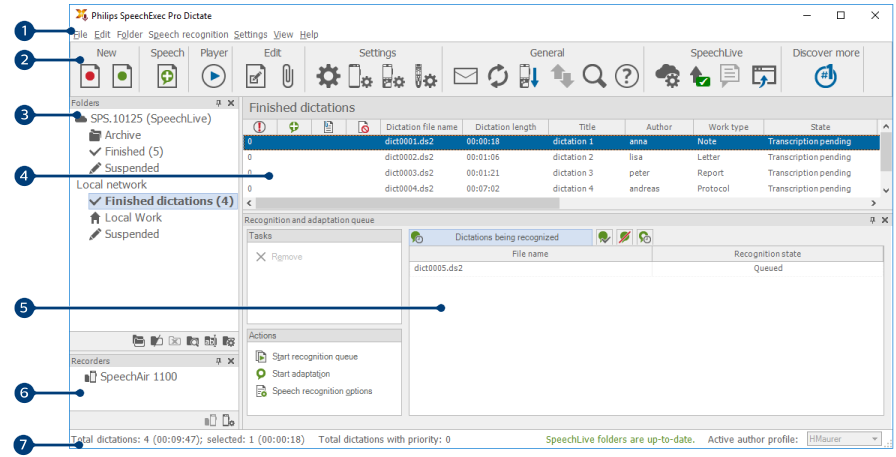 |
The menu bar across the top organizes commands under menus.
The toolbar contains tools for creating, playing and editing dictation files. Related tools are grouped together.
 Create a new dictation file
 Create a new dictation file for speech recognition
 Add to speech recognition queue
 Open the selected dictation file in the SpeechExec player window
 Start/stop playback of the selected dictation file
 Display the dictation properties of a file
 Attach a document
 Display the General settings window
 Display the settings window for a connected Philips SpeechAir recorder
 Display the settings window for a connected Philips PocketMemo recorder
 Display the settings window for a connected Philips SpeechMike microphone
 Display the settings window for a connected Philips SpeechOne Dictation Headset
 Create a new email message with the selected dictation file attached
 Refresh the information displayed in the work list
 Start downloading from a connected Philips PocketMemo recorder to a PC
 Send emails with dictations via a connected email system
 Search for items in your dictation list
 Open the help function
 Display the SpeechLive settings window
 Display dictation files queued for SpeechLive upload
 Send dictation to SpeechLive transcription service
 Recall dictation from SpeechLive transcription service
 Send dictation to SpeechLive speech recognition service
 Go to the SpeechLive login web page
 Find out more about Philips dictation products
Note
To customize the toolbar, click Settings > General settings on the menu bar and select Worklist > Toolbar. Select the icon you wish to add from the left column and click the Add item button.
The folder list displays the folder structure. The structure depends on personal or pre-configured settings. Click the arrow at the left of a folder to expand the tree and display a folder’s sub-folders.
The dictation file list displays information about the dictation files stored in the selected folder. The columns display the properties of the dictation files. Change the focus between the tree view and the dictation list view by clicking inside each pane.
The Recognition and adaptation queue panel displays information about dictation files submitted for offline speech recognition.
Device display: The device display appears when a PocketMemo or a SpeechAir is connected. It allows users to display and play back dictation files stored on the PocketMemo or SpeechAir, and to configure settings on the connected device.
The status bar at the bottom of the window displays information on dictation management, such as the number of dictation files in the selected folder, the number of dictation files with priority status assigned, and the name of the current user.
 Active author profile: Select the author profile from the drop-down list
Overview SpeechExec recorder and player window (expanded mode)
The recorder/player module is a desktop window that allows the user to record and play back sound files.
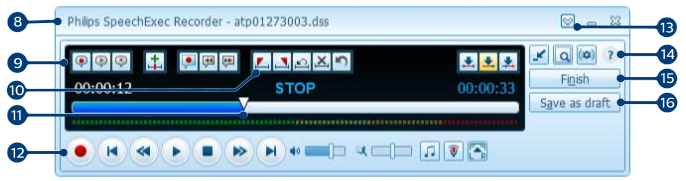 |
The title bar displays the file name.
Instructions are recorded comments by the author that are directed to the person transcribing the dictation file.
 Record a special instruction
 Play back a special instruction
 Delete a special instruction
 Insert an index mark
 Record a spoken instruction
 Jump to the previous spoken instruction
 Jump to the next spoken instruction
Control and positioning buttons:
 Mark the beginning of a section to be deleted
 Mark the end of a section to be deleted
 Remove the deletion marks
 Delete a marked section
 Undo the last deletion
 Switch between Insert, Overwrite and Append modes
Position slider: Display file information, such as file length and the current position in the sound file during recording or playback. The length of the recording is displayed in HH:MM:SS (hours:minutes:seconds) above the slider.
Audio toolbar:
 Start/stop recording
 Start/pause playback
 Stop the current action (recording, playback)
 Jump to the beginning of the dictation
 Fast rewind
 Fast forward
 Jump to the end of the dictation
 Adjust the playback volume
 Adjust the playback speed
 Adjust the playback tone
 Adjust the record volume
 Adjust the playback balance
 Show/hide the menu bar
 Switch player window between compact and expanded mode
 Display the dictation properties window
 Display the audio settings window
 Open the help function
 Finish: Close the dictation file and mark it as finished. The dictation file is moved to the Finished dictations folder.
 Save as draft: Close the dictation file and mark it as suspended, meaning that work on the dictation file is interrupted temporarily and will be continued at a later time.